
User guide
A practical guide to running MayteraOS: how to boot it, find your way around the desktop, use the apps, talk to the AI assistant, run old Windows and DOS software, and tune the system.
1. Install & boot
MayteraOS boots via UEFI. The bootloader (BOOTX64.EFI on a
FAT32 EFI System Partition) loads the ELF kernel from /boot/kernel.elf. It
runs on real x86-64 hardware with UEFI firmware, and in a virtual machine.
Run it in a VM
The quickest way to try MayteraOS is QEMU with OVMF (UEFI) firmware and the disk image:
qemu-system-x86_64 \
  -machine pc -m 2048 -smp 16 \
  -bios /usr/share/ovmf/OVMF.fd \
  -drive file=maytera.img,format=raw \
-device e1000,netdev=n0 -netdev user,id=n0pc (i440fx), not q35.
The ATA/IDE driver expects legacy IDE ports at 0x1F0, which the q35 AHCI
controller does not provide. Give it at least 2 virtual CPUs to exercise SMP.Install on real hardware
There is no downloadable prebuilt image right now: the installer ISO has been withdrawn
(it was built to hand off from GRUB, but the kernel expects a UEFI handoff, so it never
booted), and the prebuilt disk image is temporarily unavailable while it is rebuilt and
re-verified against the current source. See Downloads for
the current status of both. Until a verified image is published again, build MayteraOS
from source (also linked from Downloads): the build produces a single UEFI disk image
with a GPT partition table holding a FAT32 EFI System Partition (the bootloader, the
kernel, wallpapers and boot bitmaps) and an ext2 root partition (the apps under
/APPS and everything else). Write that image to a disk or USB stick to boot
it on real hardware.
2. The desktop
Once booted, a user-mode compositor takes over the framebuffer and draws the desktop: wallpaper, desktop icons, a taskbar, the Start menu, window chrome and a system tray. If the compositor ever exits, the kernel falls back to a built-in desktop.
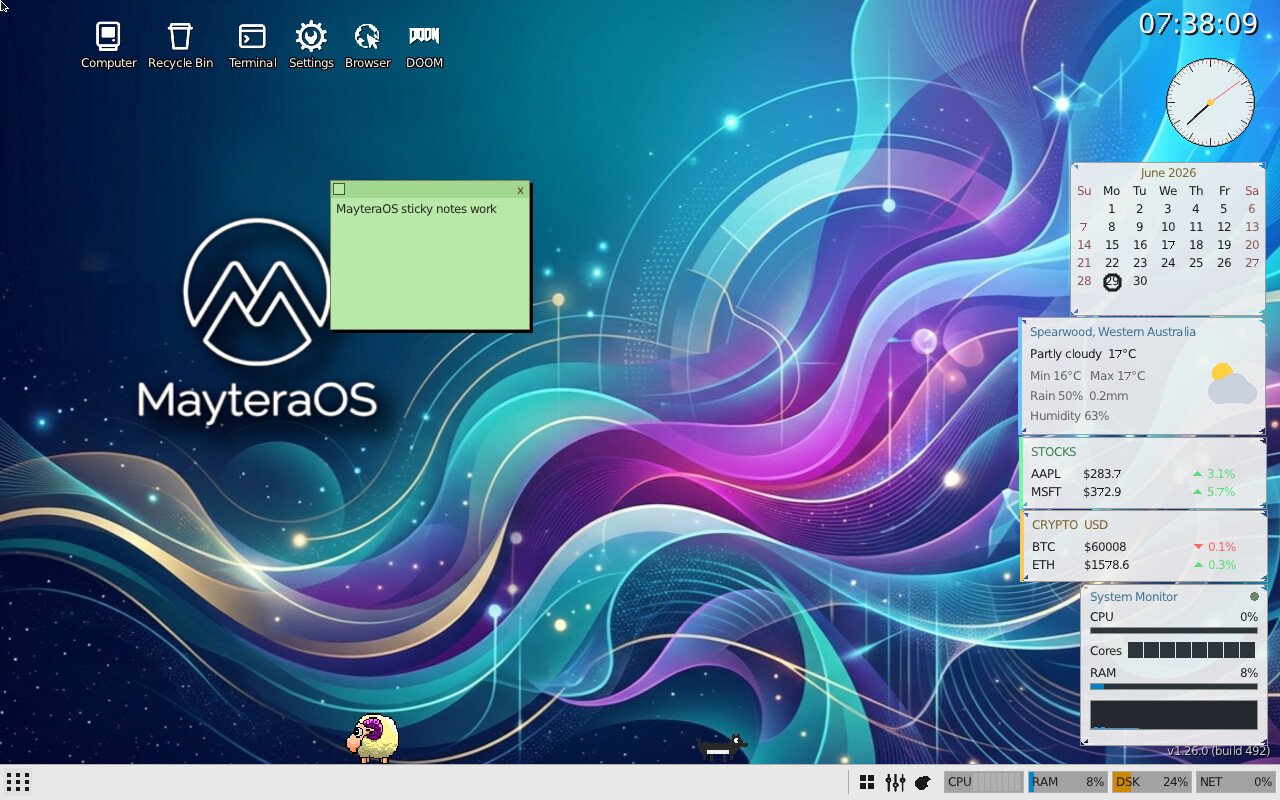
- Desktop icons (top-left): Computer, Recycle Bin, Terminal, Settings, Browser, DOOM and more. Double-click to open.
- Taskbar (bottom): the Start button, open-window buttons, and a system tray with the clock and tray menu.
- Widgets (right): analog and digital clocks, a month calendar with the current day highlighted, live weather, and a per-core system monitor.
- Windows are draggable, have beveled CDE/Motif chrome, and cast drop shadows. Press F11 to maximize or restore the focused window.
- Desktop pet: a draggable sheep with gravity, controlled from the tray.
3. The apps
MayteraOS ships a full set of user-mode applications, launched from the Start menu or by double-clicking a desktop icon. The headliners:
Productivity & system
- Files: browse, open and manage files across the filesystems, including network shares.
- Text editor: a windowed editor;
mviis the terminal vi. - Terminal: a real shell (and
msh) with history, pipes and redirection. - Calculator, Task manager, Device manager, Disk Manager (partition, format and mount disks), System log, Recycle Bin.
- Settings: the control panel (see section 6).
Media & net
- Browser: renders real sites over HTTP/1.1 and HTTP/2 with TLS 1.2/1.3.
- Image viewer, Paint, Music player (skinnable, with a graphic equalizer, playlist and a real-time audio-reactive visualizer), Media player.
- IRC client (multi-channel), SSH client.
Games & extras
- DOOM; a native Solitaire; a Pong-style arcade game; and a side-scrolling rescue-and-puzzle game.
- The Win16 compatibility layer (see section 5) can also run classic Windows 3.x-era card, puzzle and arcade games that you supply.
- Python interpreter and a Help viewer with tooltips and F1 help.
4. The AI assistant
MayteraOS has a built-in AI chat (powered by Kimi) that is wired into the operating system, not bolted on. It can answer questions, but more importantly it can act: open apps, read state, change settings and automate tasks.
How it works
Each application, widget and game ships a YAML tool contract describing its purpose, inputs, outputs and permissions. The assistant first reads a lightweight index of these contracts to discover what it can do, then calls the relevant tools through a promise-driven (precondition, postcondition, deadline, outcome) execution loop.
Examples of what you can ask
- “What files are in
/APPS?” - “What is the weather?” (read from the weather widget)
- “Open cloudflare.com in the browser.”
- “Switch to a dark theme.”
Building new apps by describing them
Beyond operating existing apps, the assistant can generate a brand-new small app or desktop widget from a plain-English description, compile it, and launch it as a running window, gated by the same capability and consent system. In a verified test, the request “build me a tip calculator” produced a working app in a single pass. Asking the assistant to revise an app it already built, conversationally, is designed for but not yet proven end to end; today the compile step runs on a separate build machine rather than on the device itself.
5. Running Win16 & DOS software
MayteraOS can run software written for other systems through its own compatibility layers. This is a compatibility capability, not bundled content: MayteraOS does not include or distribute any third-party commercial software. You supply the program; MayteraOS provides the environment it runs in.
Windows 3.1 / Win16 apps
Place a 16-bit NE executable under /WIN16 on the boot disk and launch it. An
NE loader maps the program into memory, and a from-scratch translation layer implements the
classic KERNEL, USER and GDI APIs on top of the
MayteraOS kernel and compositor, plus a 16-bit OLE2/COM implementation for richer apps.
maytera> win16 /WIN16/APP.EXEThe compatibility layer has been tested against a broad range of real Windows 3.1-era software supplied for testing, including card games, sliding-tile and maze-style puzzle games, a golf simulation, a full-featured word processor, and other productivity and arcade titles from that era. Coverage of the underlying KERNEL/USER/GDI/SHELL API surface is comprehensive: essentially the full ordinal set is recognized, with real implementations for the commonly used calls and safe fallback stubs for the long tail, so an unfamiliar API call no longer desyncs or crashes a hosted 16-bit program.
DOS programs
A DOS emulation layer runs classic MS-DOS programs in a window. DOOM is also included,
built from id Software's own published engine source; you supply your own
DOOM.WAD data file, which MayteraOS does not include or distribute.
6. Settings
The Settings app is the control panel. Its sidebar groups everything you can tune:
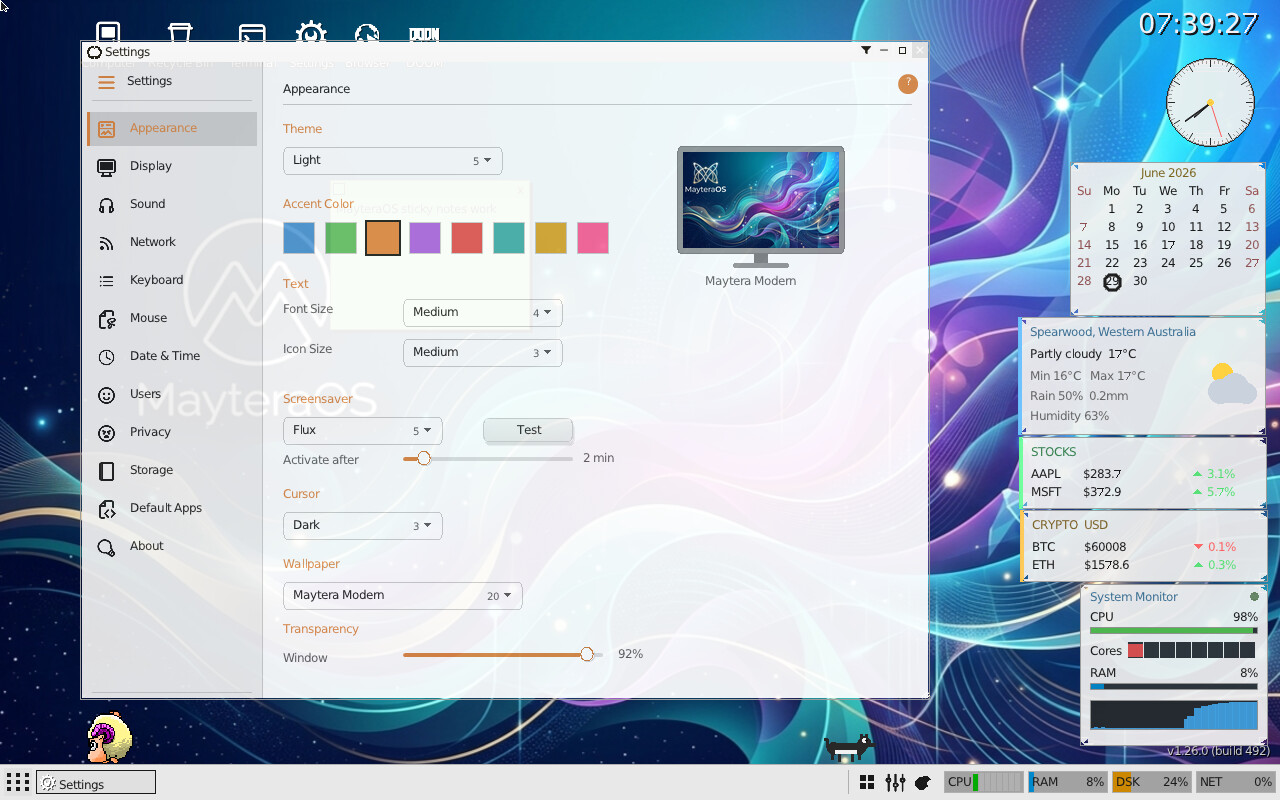
- Appearance: theme, wallpaper, fonts, cursor style and size, and a
screensaver picker covering both native screensavers and, for Win16 software, genuine
Windows 3.x-style
.SCRscreensavers. - Display: resolution.
- Sound, Keyboard, Mouse.
- Devices: PCI/USB/IRQ inventory, and printers (add, remove, set default, test print).
- Network: DHCP or a static IP, mask and gateway.
- Date & Time, Users, Privacy.
- Storage: disks and SMART health.
- Default Apps, About.
Most changes apply live, with no reboot. Themes range from a period-correct retro UNIX look to modern light and dark.
7. Networking
MayteraOS has a complete TCP/IP stack written from scratch: ARP, IP, UDP, TCP, DHCP and DNS. At boot it probes for a NIC in order and uses the first one found: VirtIO-net (preferred in a VM), then Intel E1000, then, on real hardware with no PCI NIC, a USB Ethernet adapter (CDC-ECM class or an ASIX AX88772/AX88179 dongle) if one is attached. On top sit a TLS 1.2/1.3 client and an HTTP/2 browser. The compositor services the network every frame.
- DHCP is the default; set a static address in Settings → Network, or
via a
/CONFIG/NETIP.CFGfile (ip=/mask=/gw=). - TLS 1.2/1.3 with modern cipher suites (AES-GCM, SHA-256/384) and a Chrome-style ClientHello, so it negotiates with real CDNs.
- SSH-2 client and server (curve25519, AES-GCM, RSA and public-key auth).
- SMB and NFS network-share browsing from Files, with read and write; Files auto-discovers shares on the local network.
- Network printing: send documents and images to a real network printer over IPP.
USB
MayteraOS has generic USB support: Mass Storage for external drives, HID for keyboards and mice, and USB Audio Class for external DACs, all driven from real device descriptors rather than hardcoded per-device tables. It can boot and run entirely from a USB stick, with no internal disk present at all, by writing a built disk image (see Install & boot above for how to get one) to the stick instead of a fixed disk.
8. Reprogramming the OS
This section describes a goal the project is building toward, not a feature you can use today. What actually exists now, described in section 4, is narrower: the AI assistant can generate a new small app or widget from a description, compile it on a separate build machine, and launch it, gated by the same capability and consent system used for every other AI action. It cannot yet modify an existing app, the compositor, drivers, or the kernel.
The long-term goal is that any part of the system except its security core could be safely redesigned by the user through the AI, staged by blast radius (userland apps first, then the compositor, then drivers, then the kernel), with every step gated by a capability token, snapshotted before the change, and automatically rolled back if a post-change liveness check fails. The capability/consent/audit subsystem is real and already governs every AI action described in section 4; the broader snapshot-compile-verify-rollback loop for compositor, driver and kernel changes, and any A/B kernel-slot boot mechanism to support it, is design work, not shipped code. See Self-Reprogrammable OS for the full design.
9. Troubleshooting
Nothing boots / a blank screen
Confirm the firmware is UEFI (OVMF in a VM) and that EFI/BOOT/BOOTX64.EFI and
/boot/kernel.elf are present on the FAT32 ESP.
Disk not detected
Use machine type pc (i440fx), not q35. The ATA driver uses legacy
IDE ports that q35's AHCI does not expose.
The desktop falls back to a plain background
The wallpaper filenames must exist on the boot disk as uppercase 8.3 .BMP names;
otherwise the desktop draws a gradient instead.
No SMP / only one core busy
Give the VM at least 2 vCPUs (-smp 2 or more). Per-core load shows in the
system-monitor widget and in Task Manager.